
Smart Classroom: Buying Only a Display vs a Complete System — What Is the Difference?
An interactive display is one part of a smart classroom, not the whole system. Compare equipment, installation, teaching workflows and long-term costs before choosing.
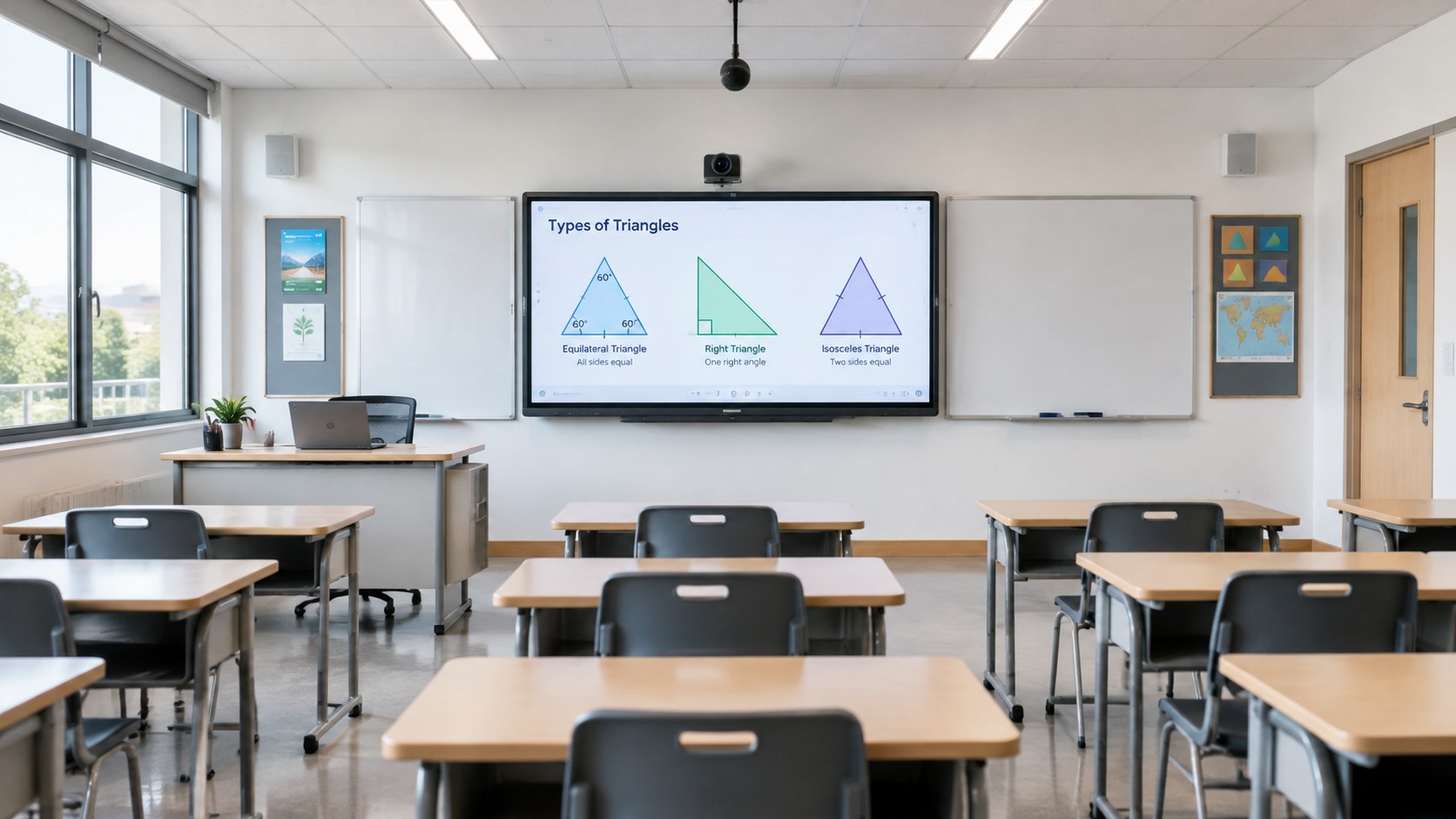
When planning a Smart Classroom, schools often start by asking how much an interactive display costs. But buying a screen and delivering a classroom that teachers can actually use are different scopes of work. The right choice depends on what the school already has, how lessons will run and who will support the equipment after installation.
Neither option is automatically better. A display-only purchase can be enough for an equipped classroom, while a complete system can reduce coordination work when several devices and teaching activities need to work together.
1. What Does a Display-Only Purchase Include?
This usually means purchasing an interactive flat panel with the functions built into that exact model, such as touch input, a digital whiteboard, speakers or screen sharing. Mounting hardware, installation, a computer, software licences and training may be included or quoted separately. Never assume that every feature or accessory comes with the screen.
Best suited to classrooms with suitable power, network access, existing teaching devices and a team that can manage integration.
Check the full model code, operating system, ports, touch connection and compatibility with the apps teachers use.
Confirm whether the quotation covers a wall mount or mobile stand, delivery, installation and a basic demonstration.
2. What Should a Complete Smart Classroom System Cover?
A complete system starts with the teaching workflow, then selects and connects the equipment needed for it. It is not simply a package containing more devices. The deliverable should be a tested classroom with an agreed scope, user training and clear support responsibilities. The equipment list will vary by room and does not need to include every item below.
Display and teaching computer: choose screen size for the room and add an OPS computer or external PC only if the required applications need it.
Audio and camera: select microphones, speakers and cameras for room coverage and remote participation, rather than assuming built-in devices will suit every room.
Network, power and installation: plan connection points, cable routing, safe mounting and coordination with the school IT team.
Software, training and handover: define licences, account ownership, practical teacher training, test results and the support contact.

3. Compare the Scope, Not Just the Screen Price
Equipment: display-only focuses on the screen and specified accessories; a complete system specifies every device required for the agreed lesson scenarios.
Integration: with display-only, the school may coordinate separate suppliers; a complete system should identify who is responsible for end-to-end compatibility and testing.
Teacher readiness: a screen demonstration is not the same as practising a full lesson, connecting a laptop, saving notes and handling a common connection problem.
Support: a display warranty covers its stated terms; system support should separately define installation, configuration, software and response responsibilities.
4. Hidden Costs to Ask About Before Ordering
Compare quotations over the same planned period of use. A lower initial price may exclude work the school still needs to pay for, but a larger package can also contain equipment that will never be used. Ask for itemised costs and separate one-off charges from recurring fees.
One-off costs: mounts, structural checks, electrical and network work, cables, installation, configuration and training.
Recurring costs: software or cloud subscriptions, maintenance, support renewals and any paid security updates specified by the supplier.
Operational costs: teacher time spent troubleshooting, lesson disruption and replacement equipment when an essential device fails.
5. Which Option Fits Your School?
Choose display-only when the room already works well and you mainly want to replace a projector or add touch-based teaching. Check that the existing laptop, audio, network and software can do the job, and assign someone to test the complete setup.
Consider a complete system for a new classroom, hybrid teaching, lesson recording or a multi-room rollout where consistent operation matters. Start with a pilot room before repeating the design. If the budget is limited, agree a phased plan that avoids buying incompatible equipment twice.
6. Acceptance Checklist: Test a Real Lesson
Do not stop at checking that the display turns on. Ask a teacher to run the normal lesson workflow in the actual room, using the school devices and accounts. Record any exceptions and agree how they will be resolved before handover.
Open teaching files, write on the screen, save annotations and reconnect the teacher laptop after restarting.
Check text readability from the back row and audio clarity across the room; for hybrid lessons, test the remote participant experience too.
Verify safe mounting, labelled cables, school-controlled accounts, licence details and a documented backup plan if the network fails.
Receive an equipment list, configuration notes, warranty terms, training records and a clear support contact.
The Key Question: Can Teachers Use It as Intended?
The value of a Smart Classroom is not measured by the number of devices. It comes from a classroom that supports lessons reliably, is manageable for teachers and has a clear plan for upkeep. Specify the teaching outcome first, then compare quotations against that same scope.
Related reading: Buying an Interactive Display: How to Check the Model Code and Android Version
Planning a Smart Classroom? Send the room photos, student capacity, teaching format and existing equipment to STEP Solutions via LINE. Our team can help assess whether a display-only purchase or an integrated system better fits your needs.
Talk to our experts
Interested in this solution for your organisation?
The Step Solutions team is ready to survey, design, manufacture, install and maintain a system tailored to your space and goals.
Related Articles

Digital Signage
Installing the Screen Is Not Enough: How to Make Digital Signage Deliver Real Results
November 2026
Interactive Display
Buying an Interactive Display: How to Check the Model Code and Android Version
November 2026
Digital Signage
Cheap Signage Players May Carry Hidden Risk Costs
November 2026