Cheap Signage Players May Carry Hidden Risk Costs
Before buying a signage player, compare the costs of screen downtime, software updates and on-site support — with a checklist for multi-branch digital signage.
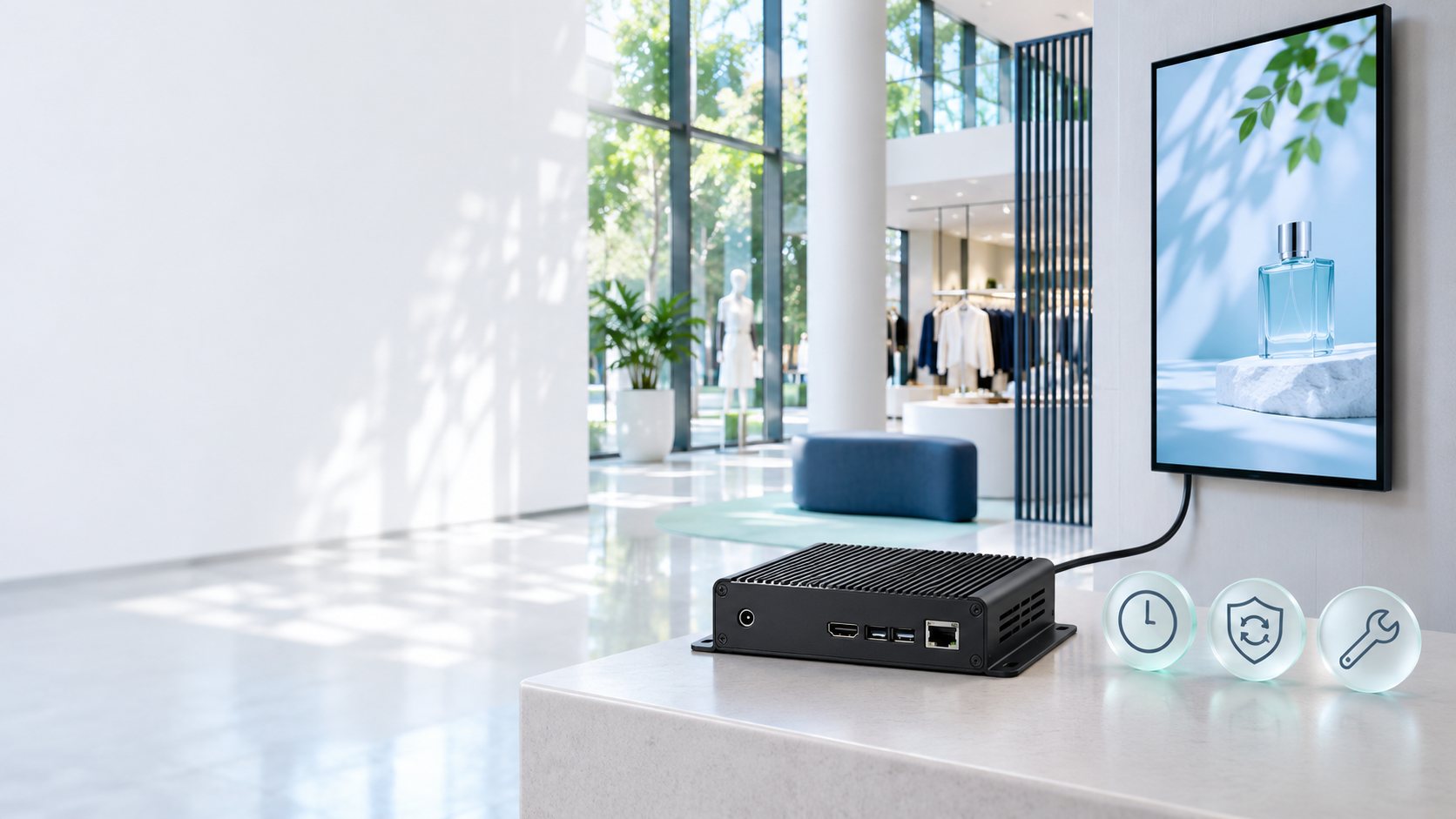
When trialled on a single screen, two player models may play the same video equally well. Across many branches, the questions change. If a menu screen goes dark at lunchtime, who finds out first? Can head office fix it remotely? If the unit has to be replaced, how long until the menu is back on screen?
A signage player is the media player that sends images, video or menus to a digital signage screen. In a CMS-based system, the player works with the content management system to display what has been scheduled. A budget player may suit screens with simple jobs and someone on hand nearby, while screens that must run all day or across many branches should be compared on lifetime cost as well as purchase price.
1. How Much Does One Dark Screen Affect the Front of House?
If the main menu screen goes dark while customers are queuing, staff may have to explain the menu and promotions one by one. The impact is very different from a decorative screen looping clips in a lobby. Before buying, identify which screens can pause for a while and which must be back on within a set time.
Test with the screens, network and files you will actually use. Cut the internet and check whether the player keeps playing stored content. Then power-cycle it and time how long it takes to resume playback by itself. Also test how it fetches the latest content once it is back online, and what status head office sees in the CMS — a player showing as online and what customers actually see on screen are two separate things to check.

2. The Unit Still Powers On — But Who Maintains the Software?
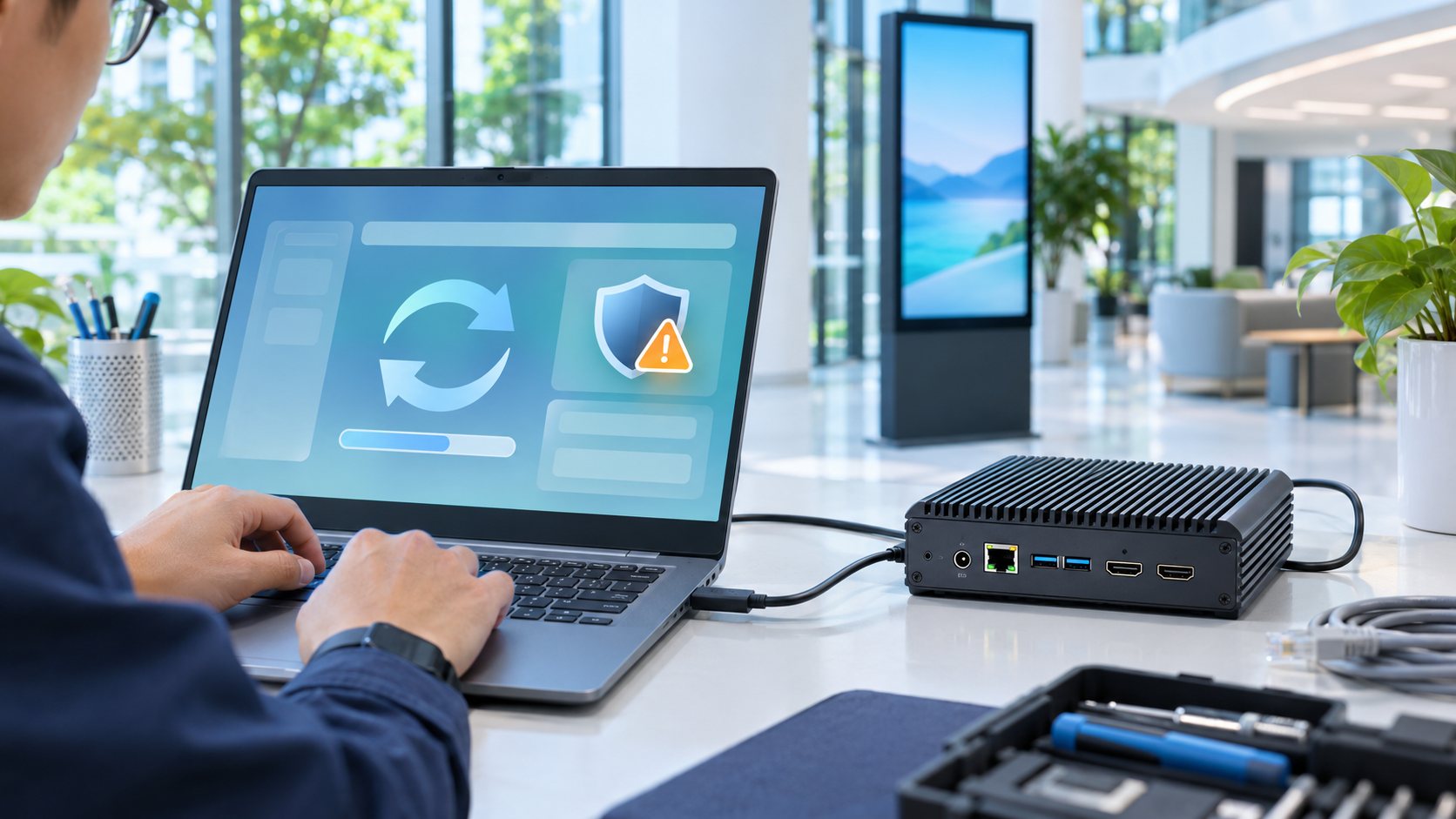
When choosing a player, ask for information about the exact model that will be delivered: how the manufacturer or provider delivers operating system and firmware updates, whether there is a stated support period or end date, and how your CMS supports that model and version. Ask the bidder to state who is responsible when updates are needed, or when a player has problems after an update.
Ask about hardware warranty and software support periods separately. To assess update capability, general NIST guidance can frame the questions — for example, who is allowed to install updates and how the device verifies update files are genuine. For multi-branch deployments, test updates on a pilot unit first and agree a recovery procedure if a player fails to resume its schedule.
Related reading: Checklist before connecting digital signage to the internet
3. When a Unit Fails, What Does Replacement Really Cost?
Replacing a player can involve a spare unit, labour, travel or shipping, plus time to configure the network, pair the new unit with the CMS and confirm the branch content displays correctly. If the screen is mounted high or the player sits inside a cabinet, allow for access time and conditions too — such as waiting until the shop closes before work can start.
When requesting quotations, ask what the support team can do remotely, whether spare units are ready to ship, and how far the service covers travel and on-site labour. Ask bidders to separate response time to a reported issue from the target time to restore the display, so offers can be compared against the real impact on each branch.

How to Compare Total Cost Before Deciding
Have procurement compare each option using the same number of screens and the same period — for example three years — and ask IT to estimate the work needed when an incident happens.
Getting started — player cost, mounting hardware, installation and initial setup.
Ongoing care — CMS licences or related support, plus labour for maintenance and updates.
Recovery after an incident — spare units, travel, replacement and time to configure or test.
Impact of downtime — time the screen shows nothing and the work staff must do instead, depending on the screen's role.
Calculate two scenarios — normal operation, and one unit replacement at a hard-to-reach branch — to see whether the purchase-price difference still pays off once team time and site visits are included. If you cannot yet put a money value on downtime, record screen-down hours and team labour hours separately.
Choosing signage players for new screens or multiple branches? Send the number of screens, number of branches, operating hours, content type and the CMS you use to the STEP Solutions team, and we will help define the specification and plan a pilot test before you scale up.
References
NIST — Technical Device Cybersecurity Capabilities Catalog
Talk to our experts
Interested in this solution for your organisation?
The Step Solutions team is ready to survey, design, manufacture, install and maintain a system tailored to your space and goals.