Buying an Interactive Display: How to Check the Model Code and Android Version
Two interactive displays with the same size and brand can differ inside. How to verify the model code and Android version before signing a purchase order.
Many interactive displays look identical on a quotation: same size, same brand, same 4K resolution. Yet the model code and the Android version inside can differ — and that affects which apps you can install, how long the unit receives updates, and whether it works with your organisation's systems.
1. Why the Model Code Matters
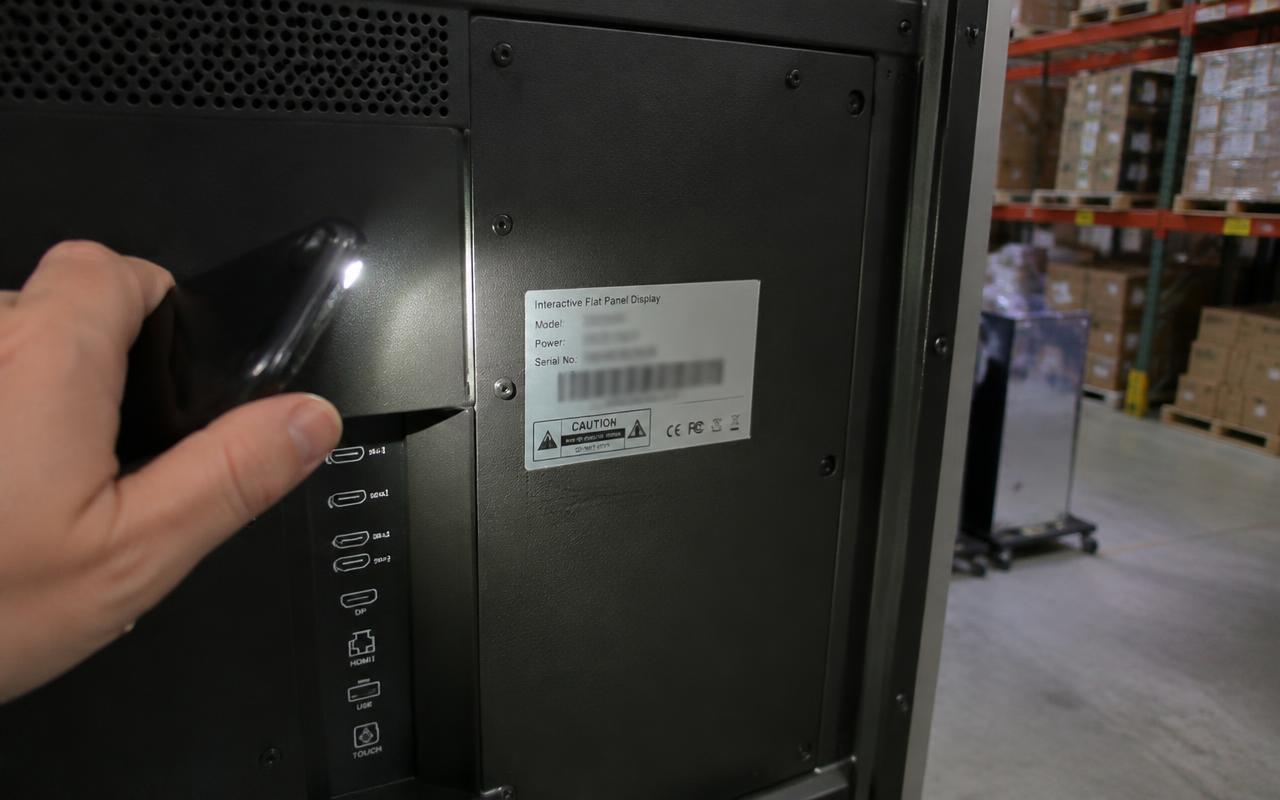
One product series often has several model codes for different markets, chipsets, memory sizes or production years. The model code on the quotation should match the label on the back of the unit you receive. If the quotation only says the series name, ask the seller to write the full model code.
Compare the model code in the quotation, the datasheet and the label on the back of the unit.
Check RAM and storage that come with that exact model code.
Ask which country or market version the unit is, since warranty and certification can differ.
2. How to Check the Android Version on the Screen
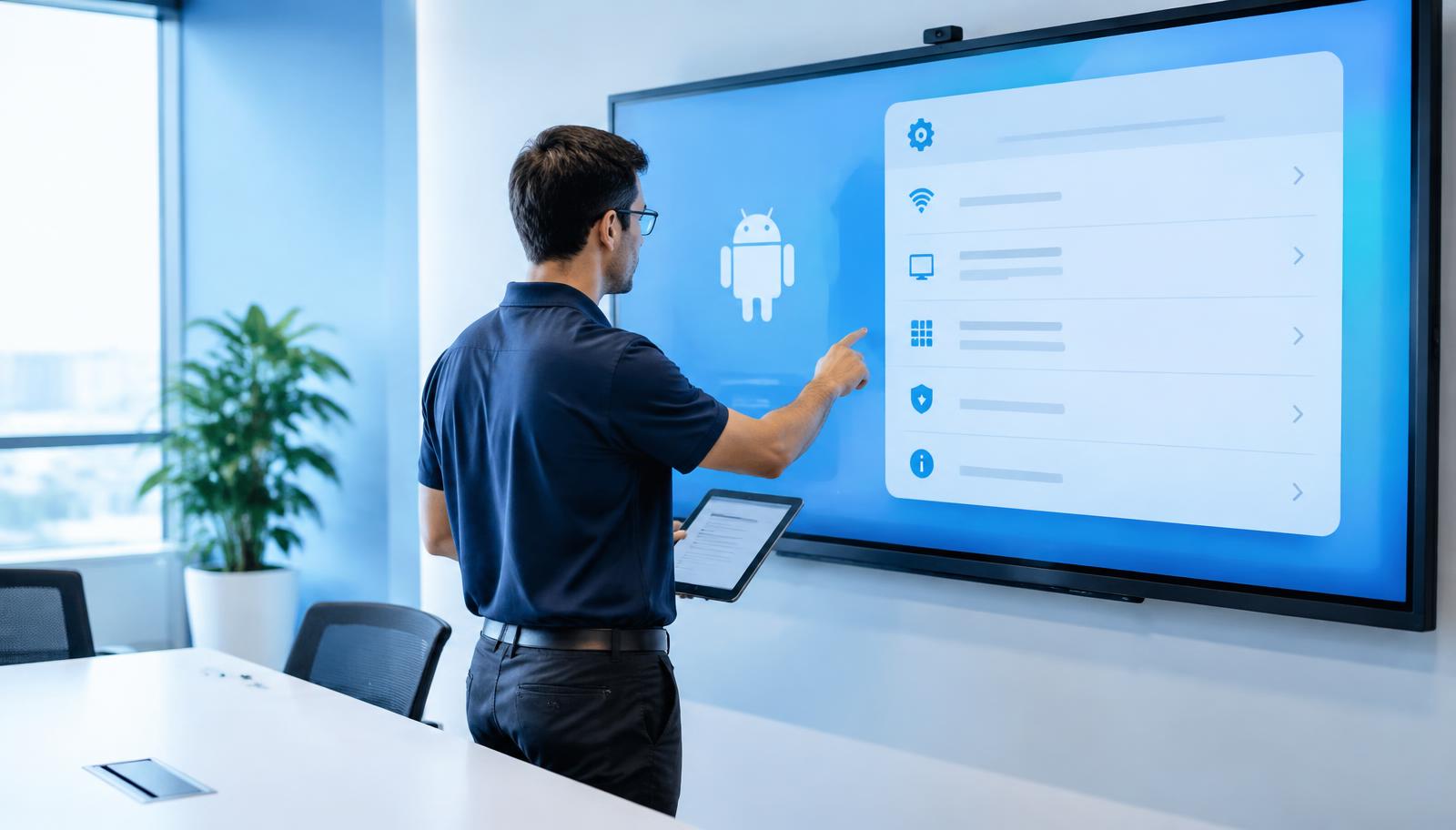
On most interactive displays, open Settings, then About or System Information. Look for the Android version, the firmware or build number, and the security patch date. Take a screenshot or photo of this page and keep it with the delivery documents.
Android version — newer versions generally support more current apps.
Security patch date — shows how recently the system was updated.
Google certification (GMS) — needed if you plan to install apps from Google Play.
3. Questions to Ask the Seller Before Ordering
Which Android version ships with the unit, and will it be upgraded?
How long will firmware and security updates be provided?
Are the meeting, whiteboard or screen-sharing apps we need supported on this version?
Can an OPS PC slot be added later if we need Windows?
4. Check Again on Delivery Day
When the units arrive, open a sample unit from each lot and compare the model code and Android version against the quotation. If anything differs, record it before signing the delivery note so the issue can be resolved quickly.
Planning to buy interactive displays for meeting rooms or classrooms? Send the size, quantity and apps you need to the STEP Solutions team via LINE, and we will help check the model and specification before you order.
Talk to our experts
Interested in this solution for your organisation?
The Step Solutions team is ready to survey, design, manufacture, install and maintain a system tailored to your space and goals.