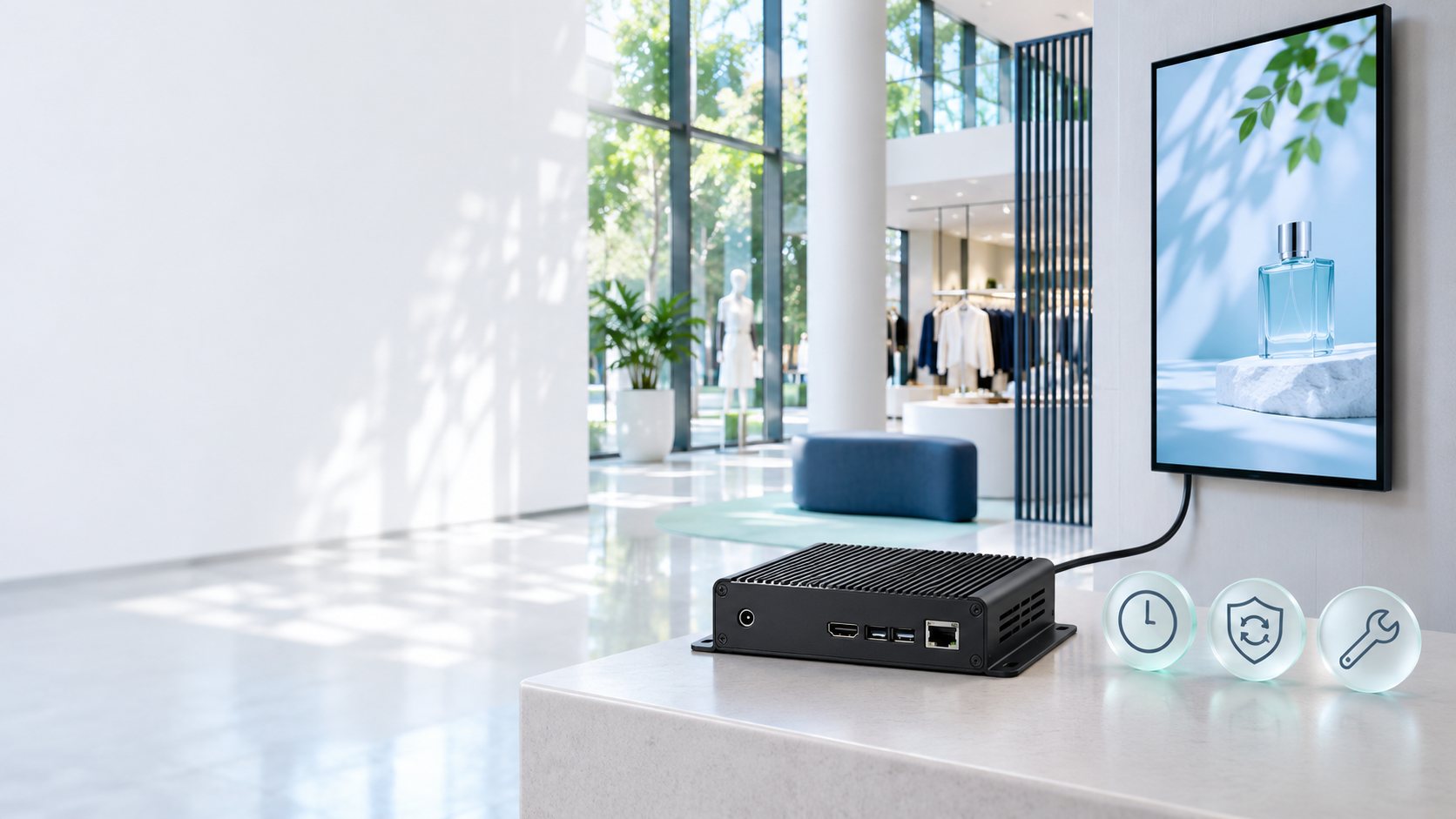
7 Risk Points to Check Before Connecting Digital Signage to the Internet
Check seven risk points before connecting digital signage to the internet — from passwords, ports and networks to CMS permissions and a recovery plan.
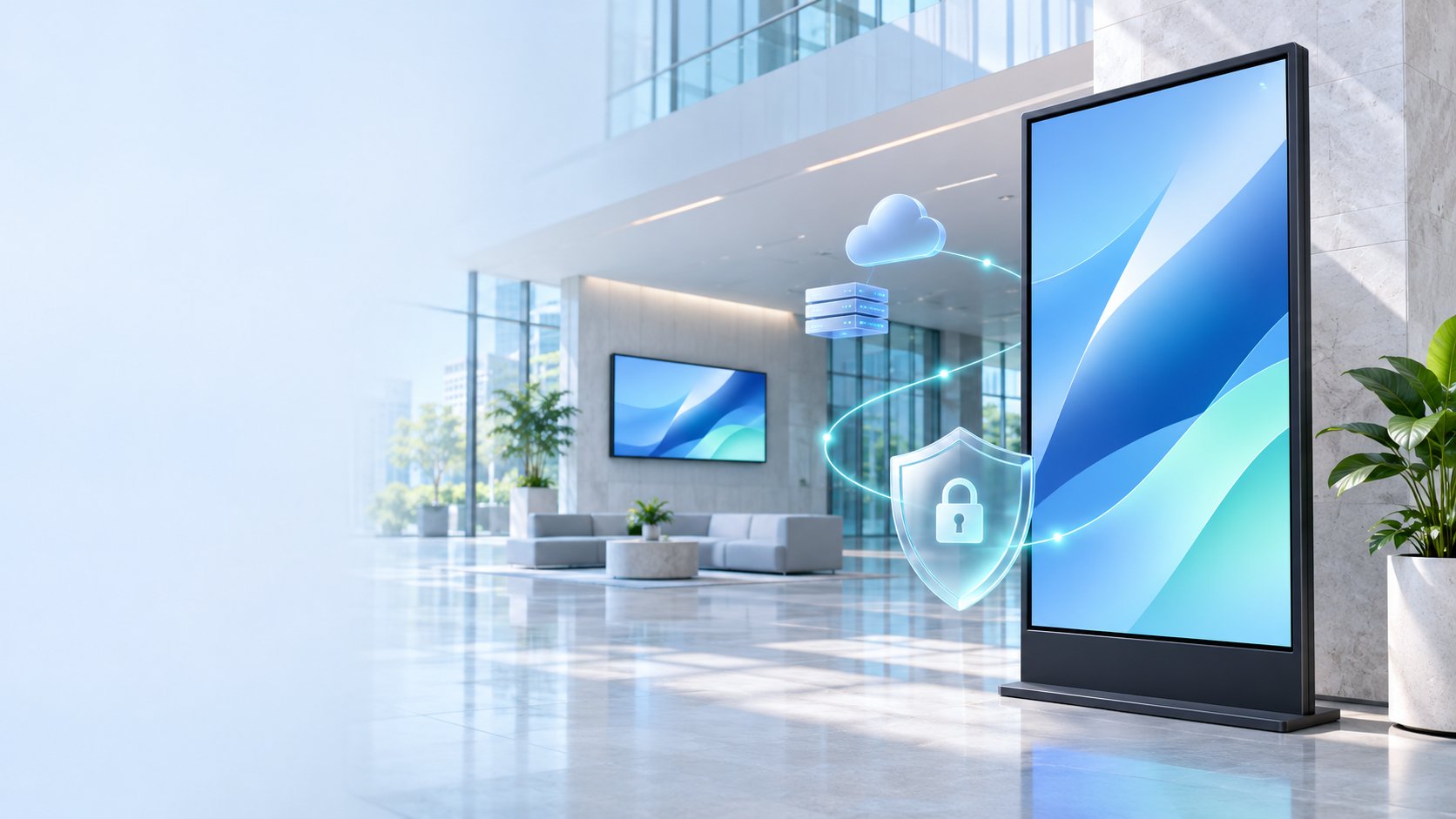
Digital signage that updates menus, promotions or announcements from head office lets many branches change content at the same time. If a publisher account is compromised, that same permission could be used to change messages or display fake QR codes across many screens. Before going live, check the displays, the media players, the content management system (CMS) and the network that connects them all.
1. Default and Shared Accounts
Factory passwords may be ones anyone can look up. CMS accounts shared by several people make it hard to trace who changed content, and hard to remove one person's access when their role changes.
How to check: Change the default passwords on displays and media players that have management accounts before connecting them to the network. Use individual CMS accounts, turn on multi-factor authentication (MFA) for administrator and publisher accounts, and disable accounts that are no longer in use.

2. Device Management Pages Exposed to the Internet
Setting up port forwarding so technicians can reach a media player's settings page from outside may also open that management page to others. With cloud CMS platforms where players initiate the outbound connection themselves, there is generally no need to open inbound ports from the internet to update content.
How to check: Have IT review firewalls, port forwarding and remote-access services against the destinations and ports listed by your CMS provider. Allow only the outbound connections that are needed and use encrypted connections. For remote support, use a channel your organisation controls — such as a VPN with MFA — limited to the devices each person is responsible for.
3. Displays on the Same Network as Critical Systems
If a player is compromised and the network allows access to other systems, an attacker could use it as a stepping stone to staff computers, point-of-sale (POS) systems or internal servers.
How to check: Place displays and players on a dedicated network, such as a digital signage VLAN, and set firewall rules between networks so they can reach only the destinations they need. Have IT test from the signage network that the CMS is reachable while POS and other out-of-scope internal systems are not.

4. Firmware and Software Past End of Support
A display may keep showing content normally even after the manufacturer has stopped releasing security updates. Checking only the media playback app can miss vulnerabilities in the device's operating system or firmware.
How to check: Keep a register of device models and the versions of firmware, operating system and playback app. Check end-of-support dates with the manufacturer or provider, trial updates from official sources on a pilot unit before rolling them out to every branch, and have IT assess isolating or replacing devices once support ends.
5. CMS Publishing Rights Broader Than the Role
Artwork creators, approvers and system administrators have different responsibilities. If every account can publish to every screen, selecting the wrong screen group just once could push one branch's announcement across the entire network.
How to check: Separate create, approve and publish rights where the CMS supports it, limit publishers to the screen groups they are responsible for, and set a step to check QR code and link destinations before publishing. Test with real user accounts for each role to confirm permissions match what was configured.
6. Ports and Display Settings Menus Too Easy to Reach
Displays in lobbies, shops or public areas may have their input source switched with a button or remote. Some touchscreens may let users escape the display app into the settings screen. If USB playback or casting is still enabled, there are more ways to change what appears on screen.
How to check: Use kiosk mode or lock menus and input sources where the device supports it. Turn off casting and USB playback if they are not used, and keep media players and cabling where the public cannot easily reach them. Test from where users actually stand in front of the screen.
7. No Alerts or Recovery Plan When a Display Misbehaves
Some displays keep playing old content while offline, so head office may only notice a problem when an expired promotion is still showing, or when a customer reports an unusual message on screen.
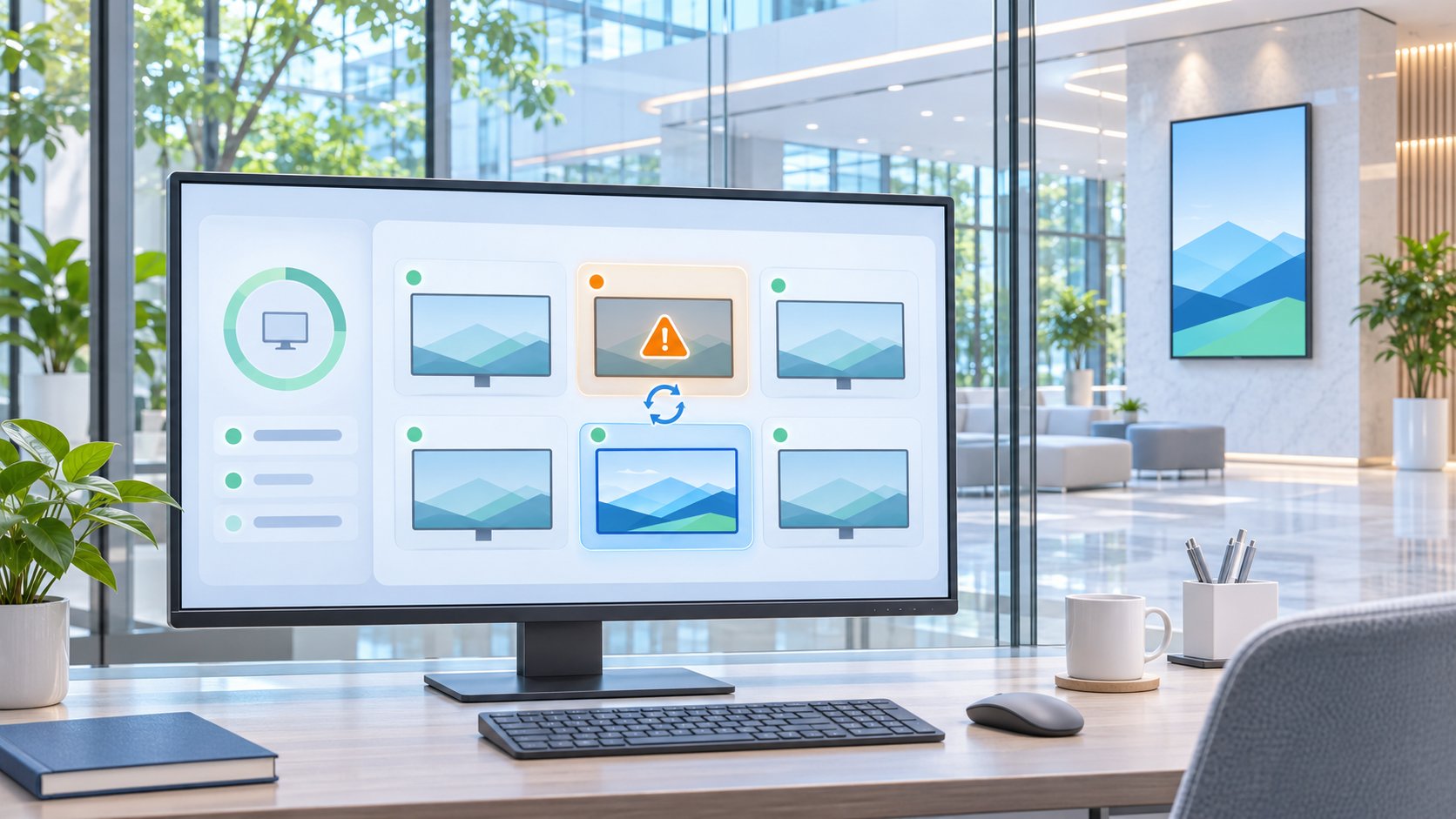
How to check: Turn on offline alerts and keep sign-in and publishing logs where the CMS supports them. Name who receives alerts and who is authorised to stop publishing or disconnect a device from the network. Prepare an approved backup content set, and test what the screen shows when the internet drops, a promotion expires, or the connection comes back.
Before Going Live
Have IT and the content team trial everything on one pilot display — from sending content through the CMS and checking cross-branch permissions to cutting the connection and restoring playback. The results can serve as acceptance criteria before rolling out to the remaining screens.
Planning digital signage for multiple branches? Talk to the STEP Solutions team with your number of screens, number of branches and how you want to update content, so we can define the CMS and network scope together with your IT team.
References
NIST IR 8259A — IoT Device Cybersecurity Capability Core Baseline
NIST — Technical Device Cybersecurity Capabilities Catalog
CISA — Cross-Sector Cybersecurity Performance Goals
CISA — Guidance on reducing risk from internet-exposed management interfaces
Talk to our experts
Interested in this solution for your organisation?
The Step Solutions team is ready to survey, design, manufacture, install and maintain a system tailored to your space and goals.